
Canva Artwork Checklist for Plastic Cards
Before you send a Canva design for printing, check five things: the design is 86 x 54mm, print bleed is on, words sit 3mm inside the card edge, pictures look sharp at 200% zoom, and you’ve downloaded a PDF Print file with crop marks and bleed. The checklist below covers all 18 checks.
Each check says why it matters and links to the guide that explains it. Tick them off as you go: your ticks are kept in this browser, so you can come back to them. The list is written for full colour cards; hot foil cards have a few differences, listed below it.
The short versionSize 86 x 54mm. Print bleed on, backgrounds to the bleed edge. Words 3mm inside the card edge. Text 6pt or more. Original pictures, sharp at 200%. Back on page 2. PDF Print with Crop marks and bleed, CMYK if offered, all pages. A plain file name. Email it to sales@cpcards.co.uk.
The checklist
From www.cpcards.co.uk/canva-artwork-checklist/
0 of 18 checked
Open your PDF and check these five places
Open the PDF you downloaded, not the design in Canva, because the PDF is what we print from. Most computers open a PDF in their own viewer or a web browser.
- The crop marks. A short line at each corner, outside the bleed. We delete them before printing.
- The bleed. Your background carries on past where the card will be cut, about 3mm all round.
- The safe area. Wording, logos and codes all sit at least 3mm inside the card edge.
- The pictures. Zoom in to 200%: they should still look sharp.
- The pages. Page 1 is the front and page 2 is the back.
Zoom in to check
Canva’s own advice for checking a design before it’s printed is to zoom in to 200% (Canva’s proofing tips). At normal size most faults are too small to see. Go round the edges and corners, then look at each picture and the smallest wording.
The download settings
- Select Share, then Download.
- Choose PDF Print as the file type. It’s the download with print bleed, crop marks and a choice of colour profile (Canva’s download file types).
- Tick Crop marks and bleed. It’s off until you tick it.
- Leave Flatten PDF as it is. You don’t need to tick it.
- Leave Compress PDF off, if your plan offers it. Canva says compressing can lower image quality.
- Set the colour profile to CMYK, if your plan shows the option. If it doesn’t, leave it on RGB.
- Include all pages, so the front and back are in one PDF, then download.
Bleed, crop marks, CMYK if you can, every page.
No bleed, so the cards can show a white edge.
Simplified sketches, not Canva’s own screens: the panel looks a little different on a phone and between versions of Canva. Our guide to Canva print bleed and crop marks explains what the first tick does, and Canva CMYK and print colours explains the colour profile.
Ordering hot foil cards?
Our metallic, satin black, white and frosted cards are printed by hot foil, not full colour, and four of the checks change:
- Leave print bleed off. Hot foil cards aren’t cut out after printing, so there’s no bleed to add.
- Flat colours only, up to 4, one for each ink colour. No photos, gradients, shadows or see-through effects.
- Text 8pt or larger, and lines at least 0.25mm thick.
- Nothing within 3mm of the two long edges, which leaves a printable area of 86 x 48mm.
Our guide to designing hot foil cards in Canva explains each one, and how to tell us which colour is which ink.
What our free check covers, and what it doesn’t
If we find something, you can fix it in Canva and send it again at no charge, or we can fix it for £10 +vat (our artwork checking service). Then you get a free email proof to approve, so you can check the layout and wording. The colours on the proof are a guide only, because every screen shows colour differently. If a colour has to be right, add a postal proof (£65 +vat, optional) to see a printed card first.
Rather not do it yourself? Our design service designs your card for £29 +vat, from your logo and wording or a Canva draft you’re not happy with.
Questions & Answers
-
What should I check before sending a Canva design for card printing?
That the design is 86 x 54mm with print bleed on, backgrounds run into the bleed, words and logos sit 3mm inside the card edge, text is 6pt or more, pictures look sharp at 200% zoom, and you’ve downloaded a PDF Print file with crop marks and bleed. The checklist on this page goes through all 18 checks.
-
Which Canva download should I send for plastic card printing?
PDF Print, with Crop marks and bleed ticked, the colour profile set to CMYK if your plan offers it, and all pages included. You don’t need to tick Flatten PDF. Don’t send a PNG, a JPG or a PDF Standard download: none of them has the bleed.
-
Should I tick Flatten PDF in Canva?
You don’t need to. Canva suggests a flattened PDF Print for print shops: flattening merges the design’s layers into one so every element prints, but it also makes the file bigger and stops it being edited. Leave the setting as it is, and our free check tells you if anything in your file needs changing.
-
Can I send a Canva link instead of a file?
Please send the PDF Print file itself, attached to your email to sales@cpcards.co.uk. It’s the file we check and print from, and the download settings in this checklist are part of it.
-
Do I need Canva Pro to send a print-ready file?
No. Everything on the checklist works on Canva’s free plan except the CMYK colour profile, which needs a paid plan. On the free plan, download in RGB and send that: our free check will flag the colours, and we can convert them for £10 +vat.
-
How do I check my Canva PDF before I send it?
Open it and zoom in to 200%. Check the crop marks sit outside the bleed at each corner, the background runs past the card edge, the wording sits inside the safe area, the pictures look sharp, and page 2 is the back of the card.
-
Will you check my Canva file before printing?
Yes, free of charge. We check the technical side: size and set-up, bleed, picture resolution and colour mode, and tell you what we find. Checking the wording, spelling and numbers on your proof is down to you.
-
What should I put in the email with my Canva file?
The card type, the quantity, which page is the front and which is the back, any extras such as a signature strip or numbering, and the spreadsheet if names or numbers change from card to card.
Checked and ready to send?

Email your Canva PDF to sales@cpcards.co.uk with the card type and quantity. We’ll check the file free of charge and quote by email, and we often reply within minutes during working hours.
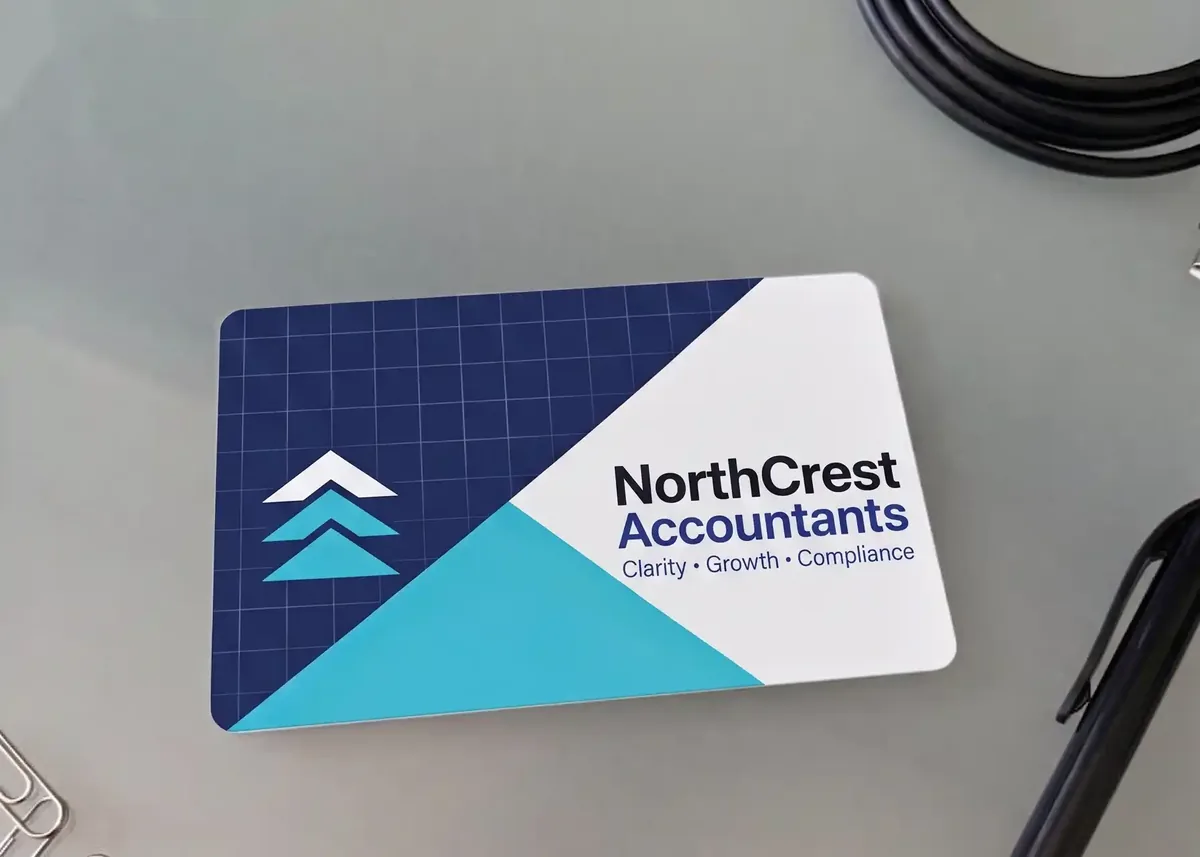
Your free photorealistic proof lets you check the layout and wording before anything is printed. The colours on the proof are a guide only, because every screen shows colour differently.