

Names, Numbers and Barcodes on Canva Cards
Design one card in Canva with a clear space for the name, number or code, and send us the details in an Excel file, one row per card. We print each card from its row. Don’t make a page for every card: it’s slow, it’s easy to type a number twice, and a Canva design holds no more than 350 pages.
This guide covers setting up the card in Canva, laying out the spreadsheet, numbering without a list, and barcodes and QR codes, whether they’re the same on every card or different on each one.
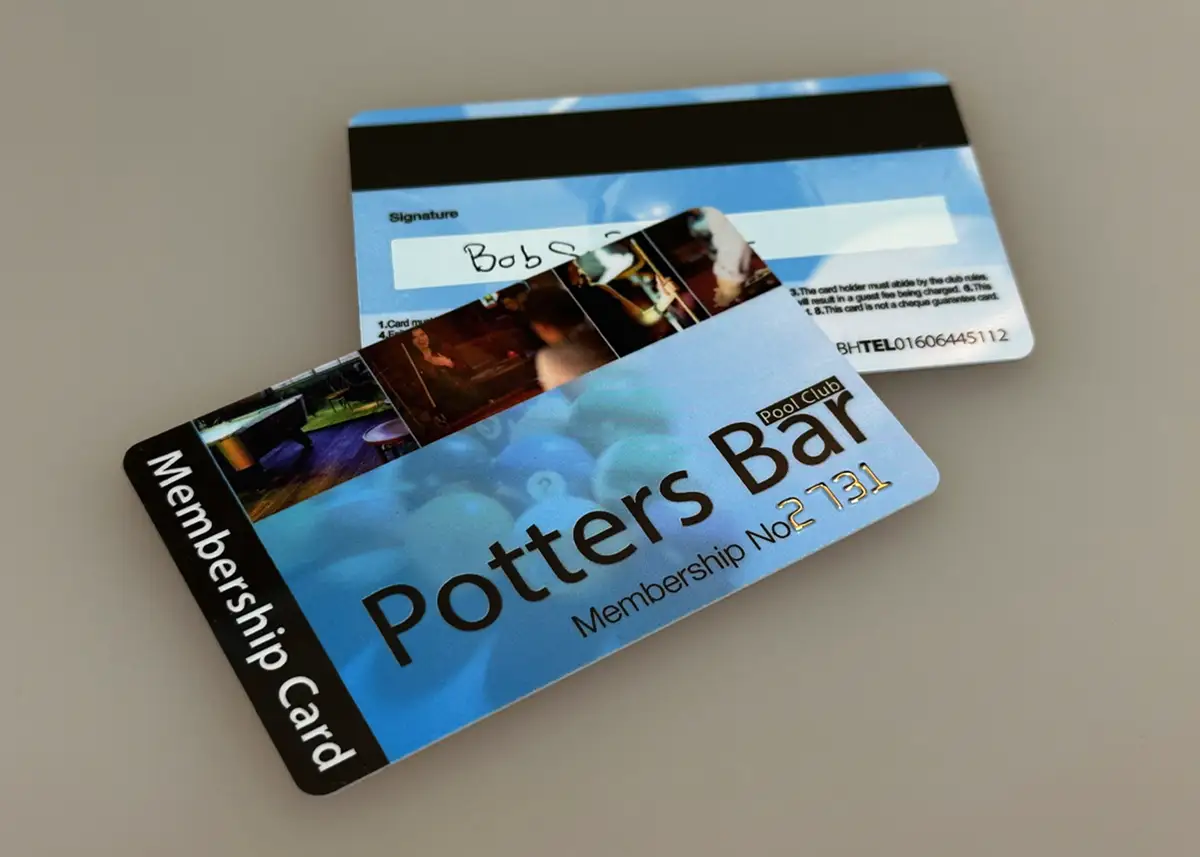
The short versionOne design, one spreadsheet. In Canva, leave a clear space sized for the longest name, keep words that never change (No., Expires) in the design, and delete any sample text before you download. In Excel, one row per card, headings in row 1, and every column formatted as Text before you type. A barcode or QR code that’s the same on every card goes in your Canva design; one that’s different on every card comes from the spreadsheet.
Why not make a page for every card?
It’s tempting to duplicate the page in Canva and retype the name on each copy. For a handful of cards it works. For a club of 300 it’s a long evening, and every copy is a chance to type a number twice or miss one out. Change the design and you change it on every page. And a Canva design holds no more than 350 pages (Canva help), so a longer list needs more than one file.
Every page retyped, and every page to check.
The design checked once, the list checked once.
With one design and a spreadsheet, the design is set up once and the list is in one place, where it’s easy to sort and check. The same spreadsheet layout works when you re-order, and when you send us new members later.
What Canva’s Bulk Create does, and whether you need it
Bulk Create links a spreadsheet to text boxes in your design. Each column is a field, such as a name, and each row makes one version of the design. You can upload a CSV or Excel (XLSX) file or type the table in, preview every version, then make them as one design with many pages or as separate designs. It’s on Canva’s paid plans (Pro, Teams, Business, Enterprise, Education and Nonprofit), on a computer rather than the phone app (Canva’s Bulk Create help).
You don’t need it to order printed cards, because we print from the spreadsheet. It does have one good use: its preview shows each row in your design, so you can see whether your longest name fits the space. If you use it for that, send us your design with the space empty, and the same spreadsheet you fed Bulk Create.
Step 1: Leave the right space in Canva
Set the card up as our Canva guide describes: a custom size of 86 x 54mm, print bleed on, and everything important 3mm inside the edge. Then give each detail that changes a space of its own.
- A clear space with strong contrast. Dark text on a pale panel, or white on a dark card, never over a busy photo. Names and numbers can go anywhere on the front or back.
- Sized for the longest entry. Type the longest name on your list into the space as a sample. A space that suits a short name may not fit a long double-barrelled one.
- A readable size. We suggest 10 to 14pt for a name and 10pt or more for a number. Names and numbers are normally printed in Arial or Times New Roman, at any size from 6pt, in any CMYK colour. To check a size, print page 1 on paper at 100% and compare it with a bank card.
- Fixed words stay in the design. Words that are the same on every card, such as No., Member or Expires, are part of your Canva design. Only what changes goes in the spreadsheet.
- No sample text in the file you send. Delete the sample before you download, and tell us in your email where each detail goes, and its size and colour. Your free proof shows them in place.
Membership cards have their own guide: how to make a membership card in Canva covers expiry dates and levels as well. Our font size guide shows each size on a card.
Step 2: Lay out the spreadsheet
One row for each card, one column for each detail, and headings in row 1. We print each card from its row, with your design, in the same run.
- Format every column as Text before you type or paste. Otherwise Excel turns 004127 into 4127 and long numbers into scientific notation, and formatting the column afterwards won’t bring them back.
- Type everything exactly as it should print, with its capitals, hyphens, apostrophes and accents. We print the file as it is and don’t edit it.
- Nothing that isn’t printed. No notes, totals, blank or hidden rows, and no formulas: copy a formula column and use Paste Special, Values. Everything on one worksheet, in one file.
- The same columns in the same order every time, so a re-order file matches the first one.
- Attach the file to your email, even for one card. Never type the details into the email itself.
Our Excel file guidelines include an example file to download. A number that appears twice on a card, printed and in a barcode, gets a column for each: our guide to numbered plastic cards shows how to keep them in step.
Numbers without a spreadsheet
If each card only needs a number, and the numbers simply count up, you don’t need a list. Give us a start number and the cards run on from it. Leave a space for the number in your Canva design, just as you would for a name.
When you re-order, the numbers carry on from the last one issued, so no two cards share a number. Numbering is an optional extra, priced on your quote.
Barcodes: the same on every card, or different on each
The same barcode on every card
It’s part of your artwork, so it goes in your Canva design. Canva’s help pages don’t describe a barcode tool, so make it with our free barcode generator, which draws it at an exact size in millimetres. Download the SVG and upload it to Canva, which takes SVG files under 3MB (Canva’s upload formats). Resize it only by a corner, so it keeps its proportions, and check its width against Canva’s rulers (Shift and R). Or skip the upload: send us the generator’s PDF with your design and tell us where it goes.
A different barcode on every card
Don’t make these in Canva at all. Leave a white box where the barcode goes, big enough for the bars and their clear space, and send us the numbers in your spreadsheet, or a start number. Ask whoever supplies your till, booking or membership software which barcode type it reads. If it reads any, use Code 39: it’s the most widely supported, and the default on most of the cards we supply. Code 128 is more compact.
- A white box behind the bars, with clear space either side of at least 10 times the narrowest bar. This is six characters of Code 39 at 0.33mm bars: 49mm with its clear space.
- The number printed under the bars, so it can be typed in if a scanner fails. Keep the bars at least 10mm tall.
- A QR code at least 15mm square, dark on light, with a white border round it.
- The safe area. Codes and their clear space stay 3mm inside the edge of the card.
| Barcode | At 0.33mm bars | At 0.25mm bars |
|---|---|---|
| Code 39, 6 characters | 49mm | 37mm |
| Code 39, 10 characters | 70mm | 53mm |
| Code 39, 14 characters | Too long 91mm | 69mm |
| Code 128, 10 digits | 36mm | 28mm |
| Code 128, 18 digits | 51mm | 39mm |
Keep the narrowest bar at 0.25mm or more, and use dark bars on white: red, orange and yellow bars vanish under the red light most scanners use. We can’t test a barcode on your own scanner, so print the generator’s version at actual size and try it first. If it has to work with your system, add a postal proof to a full colour order: a few real cards posted to you for £65 +vat, around 5 working days. More on our membership cards with barcodes page.
QR codes: the same on every card, or different on each
The same code on every card is part of your design and costs nothing extra. Canva makes them: search for QR code in Elements or Apps (Canva’s QR code help). Canva suggests no smaller than 2 x 2cm, contrasting colours, a clear border of at least four of the code’s squares, and a short link, which scans more reliably. We recommend at least 15mm square.
- A static code is fixed for good. Point it at a page you’ll keep, such as your home page or a joining page.
- Canva’s dynamic codes let you change the link later. They’re powered by an outside service, Hovercode, and on the Free, Pro and Education plans they carry a Canva logo by default.
- Or use our free QR code generator, which makes an SVG to upload to Canva, or a PDF to send with your design.
A different code on every card, such as a link to each member’s own record, is an optional extra. Don’t make them one at a time: add a column of links or numbers to your spreadsheet, leave a white space for the code in your design, and we print a unique code on each card. A QR code on each card can open a member’s online record, photo included, which is how to link a card to a photo: we can’t print a different photo on each card.
Gift card codes and scratch-off panels
A gift card with a scratch-off panel carries two numbers from one spreadsheet: a secret code printed under the panel, and a serial number printed where it can always be seen. Put the serial numbers in column A and the codes in column B, and send it as an Excel or CSV file. Keep your copy: it’s your only record of which code is on which card. In Canva, leave a space for the serial number and a plain area for the panel, at least 4mm from the edge.
Our guide to gift card codes in Excel or CSV shows the file step by step, and how to make a gift card in Canva covers the design.
Checking before and after
- Your listCheck every name and number in your spreadsheet before you send it. We print it as it is.
- Our checkWe check your Canva file free for bleed, resolution, colour mode and set-up. It doesn’t cover names or spelling.
- Your proofCheck where the details sit, their font and size, the number format and the barcode type.
- Your cardsCheck them when they arrive, and tell us in writing within 24 hours if any detail is missing or wrong.
Don’t know every name yet? Our bureau personalisation service holds your printed cards and adds names as people join, in one ink colour onto one side of the finished card. Allow 3 working days.
Questions & Answers
-
Can I print a different name on each card designed in Canva?
Yes. Design one card with a clear space for the name, and send us the names in an Excel file, one row per card. We print each card from its row, with your design. You don’t need a page for every card in Canva.
-
Do I need Canva Pro to put names or numbers on cards?
No. Canva’s Bulk Create, which makes a version of a design for each row of a spreadsheet, is on its paid plans, but you don’t need it to order printed cards. Design on any plan, leave the space clear, and send the names or numbers in a spreadsheet.
-
Should I send a PDF with a page for every card?
There’s no need. Send one design with the space left clear, and the details in an Excel file. That’s quicker for you, the list is easy to check, and the same file layout works for re-orders. A Canva design holds no more than 350 pages anyway.
-
How do I stop Excel removing the zeros from my numbers?
Format the column as Text before you type or paste anything into it. Formatting it afterwards won’t bring the zeros back. Or start your numbers at 10001, which has no zeros to lose.
-
Can I make a barcode in Canva?
Canva’s help pages don’t describe a barcode tool. Make the barcode with our free barcode generator, which sizes it in millimetres, and upload the SVG to your Canva design. For a different barcode on every card, don’t make them at all: send us the numbers.
-
Which barcode type should I use?
Ask whoever supplies your till, booking or membership software which type it reads. If it reads any, use Code 39: it’s the most widely supported, and the default on most of the cards we supply. Code 128 is more compact.
-
Can every card have its own QR code?
Yes, as an optional extra. Send a column of links or numbers in your spreadsheet and we print a unique QR code on each card. A QR code that’s the same on every card is part of your design and costs nothing extra.
-
What font are names and numbers printed in?
Normally Arial or Times New Roman, at any size from 6pt and in any CMYK colour, so one matched to your logo is fine. Tell us the size and colour you want, and check them on your free proof.
-
What if members join after the cards are printed?
Use our bureau personalisation service. We hold your printed cards, and whenever you email an Excel file of new names we print them onto cards from your stock and post them to you. Allow 3 working days.
Ready to order personalised cards?
Email your Canva PDF and your spreadsheet to sales@cpcards.co.uk with the card type and quantity, or tell us a start number. We’ll check the artwork free and quote by email, often within minutes during working hours.
Your free photorealistic proof lets you check the layout and wording before anything is printed. The colours on the proof are a guide only, because every screen shows colour differently.