
Canva CMYK: Getting Your Card Colours Right
Plastic cards are printed in CMYK ink, but Canva works in screen colours. On a paid Canva plan, download PDF Print with the colour profile set to CMYK. On the free plan, download the same PDF Print in RGB and send it anyway: our free check flags the colour mode, and we can convert it for £10 +vat.
Either way, the brightest screen colours print softer, and a black made on screen can print as a dark brown. This guide shows what changes, why, and what you can do about it before you download.
The short versionCards print in CMYK. On a paid plan: Share, Download, PDF Print, colour profile CMYK. On the free plan: the same download in RGB, and we flag it and convert it for £10 +vat. Keep neon and glowing colours out of anything that has to look bright. If your card has black text or a black background, tell us when you send it. If a colour has to be right, add a postal proof.
Why Canva colours change on a printed card
Canva shows your design on a screen, which makes colour from red, green and blue light. A full colour card is printed with four inks: cyan, magenta, yellow and black, or CMYK. Inside the editor, Canva keeps every colour as a hex code, which is a screen colour. You pick a colour, type a hex code or use the eyedropper, and there’s nowhere to type CMYK numbers (Canva’s help on element colours).
- In CanvaEvery colour is a hex code: a colour made of light.
- DownloadPDF Print in CMYK on a paid plan, or in RGB on the free plan.
- ConvertedEvery colour becomes a mix of the four inks, by Canva or by us.
- PrintedThe card is printed in CMYK ink, sealed under clear PVC.
So every colour in a Canva design becomes a mix of the four inks at some point. Download in CMYK, and Canva does it, turning each colour into the closest CMYK colour (Canva’s guide to print colours). Download in RGB, and we do it when your file arrives. Most colours barely change. The brightest ones, and black, are the ones to watch.
Downloading a CMYK PDF from Canva
- Select Share, then Download.
- Choose PDF Print. In newer versions of Canva, choose PDF and then the Print preset.
- Set the colour profile to CMYK. If you only see RGB, your plan doesn’t include CMYK: see the free plan below.
- Tick Crop marks and bleed, under Advanced settings. We delete the crop marks before printing.
- Download all pages, so the front and back of the card are in one PDF.
- Colour profile: CMYK. Canva’s help lists it on the Pro, Teams, Education and Nonprofits plans (Canva’s download file types).
- Crop marks and bleed: ticked. It adds the bleed round your design. Our guide to Canva print bleed and crop marks explains both.
Which CMYK profile your file carries doesn’t matter to us. We print the CMYK numbers in the file as they are, whatever profile is attached, so there’s nothing to choose. Our guide to colour profiles explains why.
On Canva’s free plan
The free plan downloads PDF Print in RGB, and that’s fine to send. Design the card as normal, download PDF Print with crop marks and bleed, and email it to us. Our free artwork check flags the colour mode, and you choose what happens next: convert it yourself in software that works in CMYK, such as Photoshop, and send it again at no charge, or we convert it for £10 +vat.
| Free plan | Paid plan | |
|---|---|---|
| Colour profile in PDF Print | RGB | RGB or CMYK |
| What to send | PDF Print in RGB | PDF Print in CMYK |
| What we do with it | Flag the colour mode. You convert it free, or we do it for £10 +vat | Print the CMYK numbers in the file as they are |
| Black text or a black background | Tell us when you send it | Tell us when you send it |
Converting changes the colours from how they look on your screen. Most move only slightly. The next two sections show the ones that move most, and what to do about them.
Bright colours print softer
Canva’s own help says ultra-bright screen colours fall outside what CMYK ink can print, and come out softer or more muted (Canva’s guide to print colours). That happens whoever converts the file. It’s a limit of ink, not of Canva or of one printer.
The colours that change most are the most saturated ones: neon and bright greens, electric blues, vivid oranges, hot pinks and strong purples. Darker and more muted colours usually convert closely. Nothing in the file can bring back a screen colour that ink can’t print. Our guide to the CMYK colour gamut explains why.
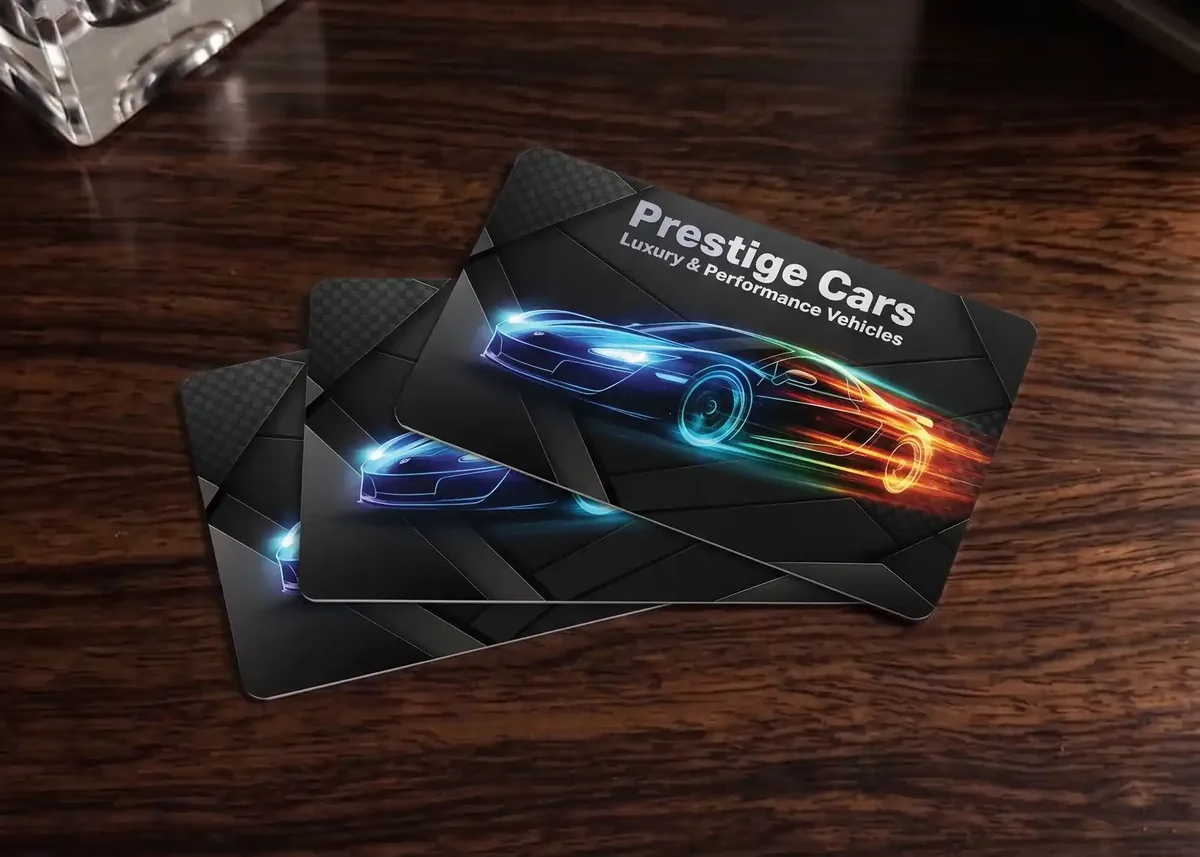
- Don’t build the design round a neon colour or a glow. Neon outlines and glow effects are the hardest case: fluorescent colours can’t be made from the four inks at all.
- Put bright colours beside dark ones. A bright colour looks brighter next to a dark one, so contrast does more than turning the colour up.
- Choose High Gloss. It makes colours stand out and look more vibrant, and it’s included. Premium Matt softens them a little, and costs £20 +vat per order. See High Gloss v Premium Matt.
- Start from colours that print well. Our CMYK colour guide shows swatches with their CMYK percentages. It’s still a screen, so treat it as a rough guide.
Getting a deep black
Black catches out more designs than any other colour. On screen it’s #000000, no light at all. A general RGB to CMYK conversion turns that into a mix of all four inks, such as C76 M71 Y65 K81, which prints a dark, muddy brown across a background and blurs the edges of small text. The exact mix depends on the profile used for the conversion.
A deep, solid black is C0 M0 Y0 K100: black ink and nothing else.
#000000, or R0 G0 B0. No light at all.
C76 M71 Y65 K81. A muddy brown, and small text blurs at the edges.
C0 M0 Y0 K100. A deep black, and small text stays sharp.
Colours drawn to show the idea, not measured. The magnified text shows why four inks blur: they can’t line up perfectly.
You can’t type CMYK numbers into a Canva design, so you can’t set a black to K100 in the editor. What you can do:
- Tell us when you send your file that the card has black text or a black background. If the black needs changing, setting it to black ink only is one of the colour settings our £10 +vat fix covers.
- Check it yourself, if you have the software. Open your CMYK PDF in a program that shows CMYK values, such as Adobe Illustrator or Acrobat Pro, and check a black area reads C0 M0 Y0 K100.
- Designing a mostly black card? Our guide to designing a black plastic card covers large black areas.
Brand colours and Pantone numbers
If your business has set colours, they’re usually given as a hex code, as CMYK numbers or as a Pantone number. Each one goes into Canva a little differently.
- A hex code. Type it into Canva as it is. It’s a screen colour, so it changes a little when it’s converted for print.
- CMYK numbers. Canva’s help suggests converting them to a hex code with an online converter (Canva). That gets you close on screen. When you download in CMYK, Canva converts the hex colour to the closest CMYK colour, which may not be the numbers you started with. On Canva Pro, the Brand Kit lets you add a brand colour as CMYK (Canva’s colour palettes help).
- A Pantone number. Canva works in hex, so it has to become a hex colour first. We print in CMYK and don’t print Pantone inks or match to Pantone colours. Our guide to Pantone colours explains why, and how to get close.
If a brand colour has to be particular CMYK numbers, send them with your file and tell us which colour they’re for, and we’ll tell you what’s involved.
Checking colour before your cards are printed
Canva’s preview, our email proof and your phone are all screens, and every screen shows colour differently. Canva makes the same point about its own printing: the material a design is printed on changes how its colours look, so it suggests a single test copy first (Canva). For your cards:
- The free email proof is a photorealistic mock-up for checking the layout and wording. The colours on the proof are a guide only, because every screen shows colour differently.
- A postal proof is real cards, printed, bonded and cut to size, posted to you to approve. If a colour has to be right, add one to your order: it’s optional, £65 +vat, for full colour cards, and adds around 5 working days. See postal proofs.
- A sample pack has real full colour cards in it, so you can see how CMYK printing looks on plastic in your own light. See our sample pack.
- Choose your finish first, so the colour is judged on the surface it will be printed on.
Printed colours can vary a little from one order to the next. If colours tell people something, such as membership levels, pick colours that are easy to tell apart, so the colour code still works if a shade varies.
Questions & Answers
-
Can Canva export in CMYK?
Yes, on its paid plans. Download PDF Print and set the colour profile to CMYK. Canva’s help lists the CMYK profile on its Pro, Teams, Education and Nonprofits plans. On the free plan, PDF Print downloads in RGB.
-
Can I get CMYK on Canva’s free plan?
No. Download PDF Print in RGB and send that. Our free artwork check flags the colour mode, and we can convert it for £10 +vat. Or convert it yourself in software that works in CMYK and send it again: we check the new file free.
-
Why do my Canva colours look duller when they’re printed?
A screen makes colour from light and a card is printed with ink, and the brightest screen colours can’t be printed in CMYK. Canva’s own help says ultra-bright colours print softer or more muted. Neon greens, electric blues, vivid oranges, hot pinks and strong purples change the most.
-
Can I type CMYK values into Canva?
Not into a design. Canva’s editor uses hex codes, and its help suggests converting CMYK numbers to a hex code with an online converter. On Canva Pro, the Brand Kit lets you add a brand colour as CMYK.
-
Why does black print brown?
Black made by a general RGB to CMYK conversion is a mix of all four inks, such as C76 M71 Y65 K81, and prints a dark, muddy brown. A deep black is C0 M0 Y0 K100: black ink only. If your card has black text or a black background, tell us when you send the file.
-
Can I use Pantone colours in Canva?
Canva works in hex colours, so a Pantone number has to become a hex colour first. We print in CMYK and don’t print Pantone inks or match to Pantone colours. If a colour has to be right, add a postal proof and approve a real card first.
-
Which colour profile should I choose when I download?
CMYK, if your plan offers it. Which CMYK profile the file carries doesn’t matter to us: we print the CMYK numbers in it as they are.
-
Will my printed cards look like my screen?
Not exactly. Every screen shows colour differently, and ink on plastic can’t show every screen colour. The free email proof is for checking the layout and wording, and its colours are a guide only. If a colour has to be right, add a postal proof for £65 +vat.
Ready to order?

Send us your Canva PDF, in CMYK or RGB, with the card type and quantity. We’ll check the file free of charge and quote by email.
Your free photorealistic proof lets you check the layout and wording before anything is printed. The colours on the proof are a guide only, because every screen shows colour differently. If a colour has to be right, add a postal proof.